Plugins

Plugins for Cloud Window

Add widgets, launcher actions and shortcuts to your desktop. Each plugin runs in a sandbox on your computer, with only the permissions you approve.

Choose Install and sign in to your Cloud Window account. Your computer opens to the plugin, shows what it can access and installs it when you approve.

Install by computer address

For a computer you run yourself. Saved in this browser.

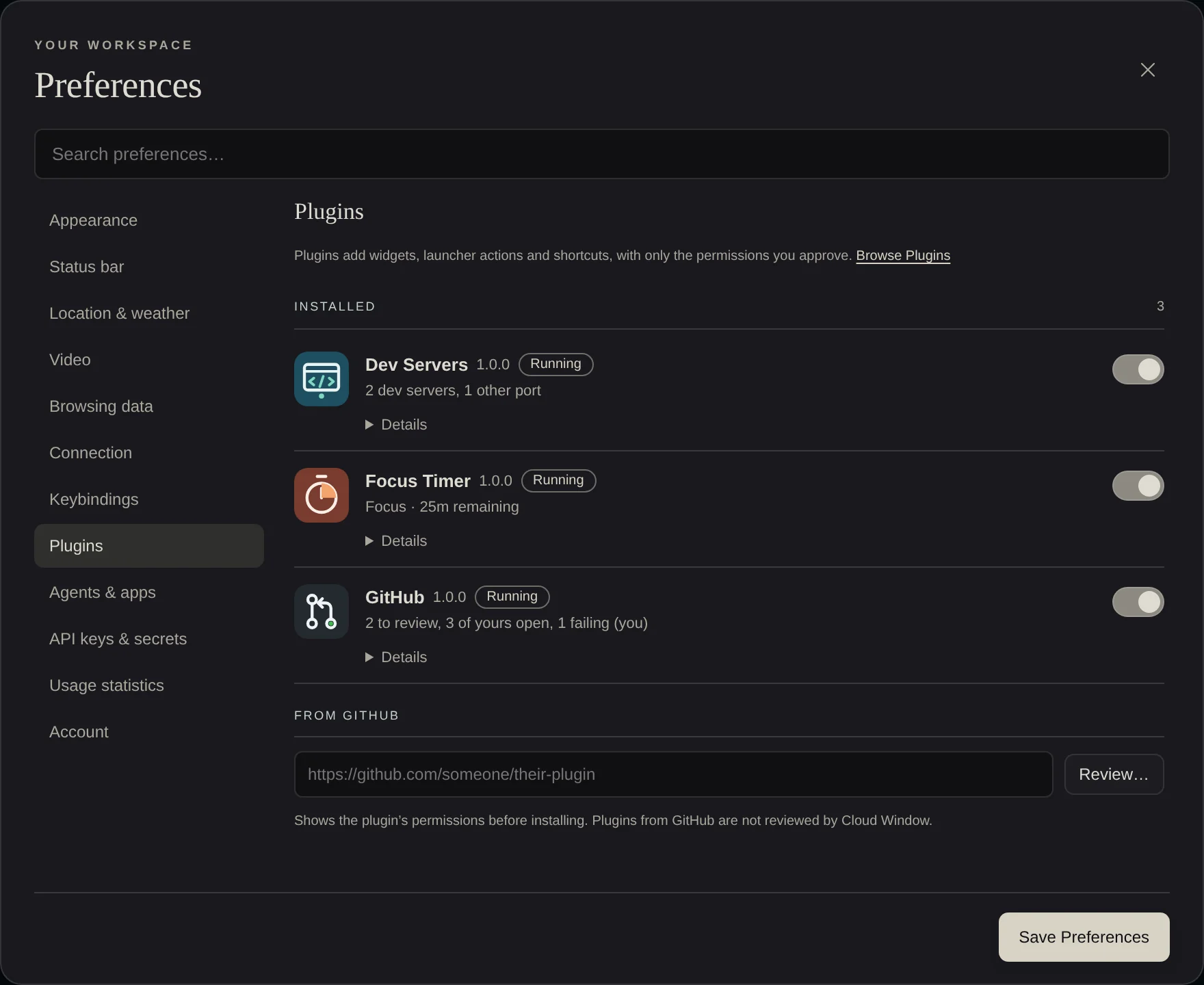
Cloud Window's Preferences, Plugins section: Dev Servers, Focus Timer and GitHub installed and running, each with a switch, and a field to install a plugin from GitHub.

Security

Review permissions before installing.

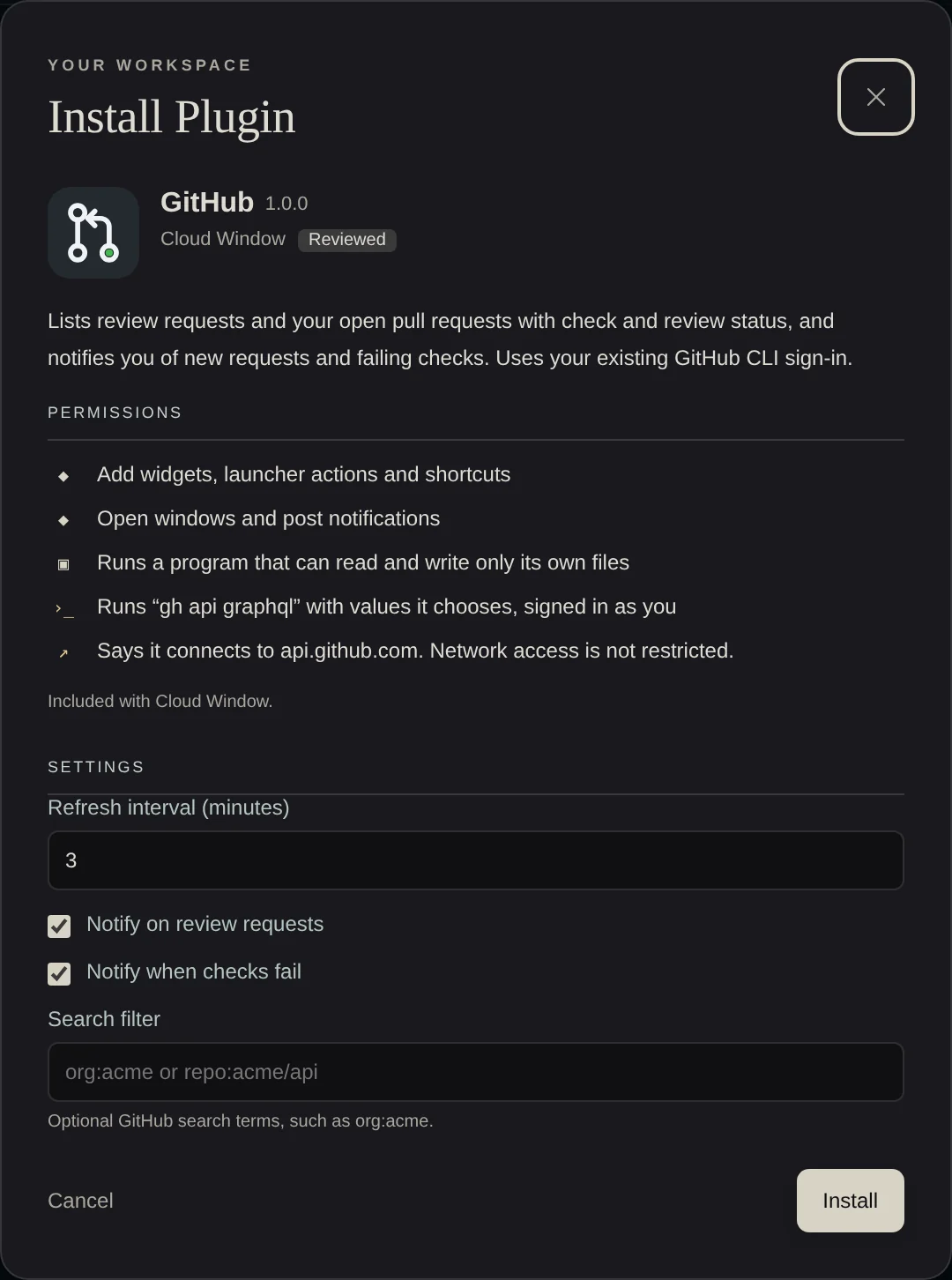
Install opens your computer, which reads the plugin and lists its permissions. Nothing runs until you approve.

The Install Plugin dialog for GitHub, showing its description, permissions and settings.

Build

Build a plugin

A plugin is a manifest and a JavaScript file, with no build step or dependencies. The desktop provides its API as globalThis.cloudwindow and renders what the plugin declares on every device.

  1. Create a plugin

    In a terminal on your Cloud Window computer:

    cloudwindow plugin new my-plugin --id you.my-plugin
    cloudwindow plugin validate my-plugin

    This creates cloudwindow-plugin.json, provider.mjs and a README. validate runs the same checks as the installer.

  2. Describe the plugin

    {
      "schemaVersion": 1,
      "id": "you.standup",
      "name": "Standup",
      "version": "1.0.0",
      "summary": "Minutes until standup, and the link to join.",
      "publisher": { "name": "You" },
      "license": "MIT",
      "categories": ["productivity"],
      "grants": ["extend:write", "desktop:act"],
      "provider": { "entry": "provider.mjs" },
      "settings": [
        { "key": "time", "type": "text", "label": "Standup time", "default": "09:30" },
        { "key": "link", "type": "text", "label": "Meeting link" }
      ]
    }
  3. Add a widget

    const cw = globalThis.cloudwindow;
    await cw.ready;
    
    function minutesUntil(hhmm) {
      const [h, m] = hhmm.split(':').map(Number);
      const at = new Date(); at.setHours(h, m, 0, 0);
      if (at < Date.now()) at.setDate(at.getDate() + 1);
      return Math.round((at - Date.now()) / 60000);
    }
    
    const join = (url) => ({ tool: 'windows_open', args: { kind: 'browser', url } });
    
    cw.every(30, async () => {
      const left = minutesUntil(cw.settings.time);
      await cw.widget('standup', {
        compact: { label: 'Standup', value: `${left}m`,
                   tone: left <= 5 ? 'warn' : 'normal' },
        popover: { title: 'Standup', rows: [
          cw.settings.link ? { label: 'Join now', action: join(cw.settings.link) }
                           : { label: 'Add the meeting link in Preferences' },
          { label: 'Snooze the reminder', action: cw.signal('snooze') },
        ] },
      });
    });
    cw.on('signal', (name) => { if (name === 'snooze') cw.status('Snoozed'); });
  4. Install and test

    Push the folder to GitHub. In Preferences → Plugins, enter the repository address under From GitHub and choose Review…. The plugin log is under Details.

API reference
ready
Resolves with { plugin, settings, dataDir }.
settings
Current settings, with defaults applied. Use on('settings', fn) for changes.
widget(id, declaration)
Adds or updates a menu bar widget: compact (label up to 8 characters, value up to 12, tone normal, warn or alert), optional popover with up to 12 rows, optional click. Up to six per plugin.
action(id, declaration)
Adds a launcher action with a label, detail, keywords and action. Up to 20 per plugin.
signal(name, data)
An action that notifies your plugin when a row or button is chosen. Handle it with on('signal', fn).
notify(title, detail)
Posts a notification. Up to six per minute.
call(tool, args)
Calls any desktop tool allowed by the plugin's grants. These are the same tools agents use over MCP.
run(program, args)
Runs a command listed in the manifest, exactly, without a shell. Resolves with { code, stdout, stderr }.
listening()
With permissions.listening: the ports your programs are serving on, with each program's command and folder.
every(seconds, fn)
Runs immediately, then at the interval. Errors are logged.
log(), error(), status(text)
Writes to the plugin log, or sets its status in Preferences.
dataDir
A writable folder that persists across restarts and is deleted with the plugin.
Manifest reference
id
publisher.name in lowercase. IDs are permanent and cannot be reused by another repository.
grants
Desktop permissions: extend:write (widgets, launcher, shortcuts), desktop:act (windows, notifications), desktop:read, browser:read, files:read, settings:write. Shell access is not available.
permissions.programs
Exact commands the plugin can run, such as "git status --porcelain". { "command": "gh api graphql", "fields": true } also allows -f name=value pairs. Shells and interpreters are not allowed.
permissions.listening
true to see which programs are serving on ports.
permissions.network
Hosts the plugin connects to, shown in the install dialog. Not enforced.
settings
Fields of type text, number, boolean, select or secret. Secret values are never displayed after saving.
contributes
Launcher actions and Option shortcuts declared without code.

JSON Schema: /plugins/manifest.schema.json

Submit

Submit a plugin

Community plugins are listed at a reviewed commit. Each update is reviewed before the listing changes.

Plugin ideas

Plugins we would like to see.

  • Next MeetingTime until your next calendar event, from an ICS feed
  • GitLabMerge requests and pipeline status
  • Linear or JiraIssues assigned to you
  • UptimeStatus of the sites you run
  • DeploymentsLatest Fly, Vercel or Cloudflare deployment status
  • Home AssistantSwitches and sensors in the menu bar
  • World ClocksTime zones for your team
  • Shortcut HintsShows the keyboard shortcut for actions you choose with the mouse

Questions

Frequently asked questions

Can a plugin read my files?

Only with the files:read permission, which the install dialog lists. Otherwise a plugin can read only its own folder.

Can a plugin access the internet?

Yes. Network access is not restricted. The install dialog lists the hosts each plugin declares, and plugins included with Cloud Window connect only to those hosts.

How are plugins updated?

Included plugins update with Cloud Window. Plugins from GitHub stay at the installed commit until you choose Check for Update. Updates that request new permissions stay off until you approve them.

Do plugins work on phones and tablets?

Yes. Plugins run on your computer, so their widgets work in any browser you use Cloud Window from.

How do I remove a plugin?

In Preferences → Plugins, open the plugin’s details and choose Remove. Its widgets, launcher actions, shortcuts, files and data are removed.